

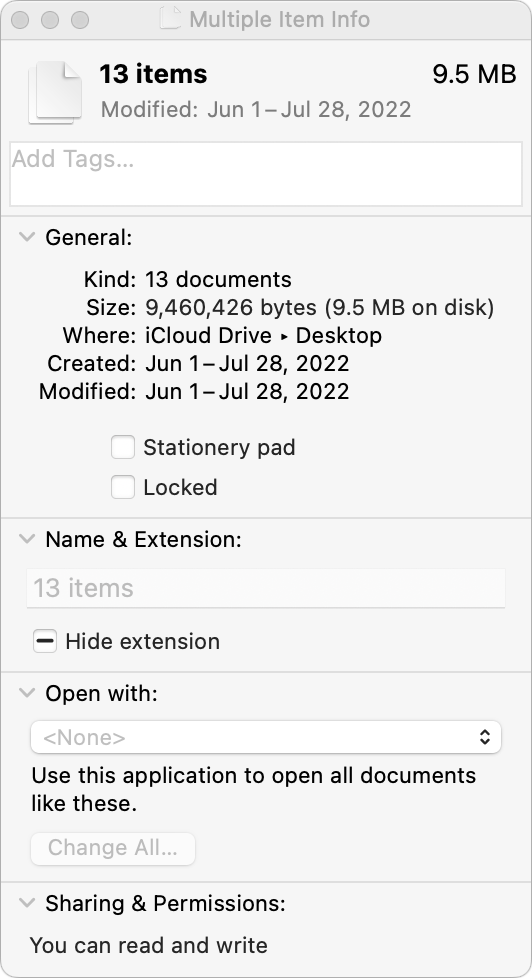
You probably know that selecting a file in the Finder and choosing File > Get Info (Command-I) brings up the Get Info window. This window provides information about the file, including its name, kind, size, creation and modification dates, and much more. You can also use Get Info to hide or show filename extensions, lock and unlock files, and change permissions. But what if you want to do those things to multiple files or figure out how large a set of files is? Turn to the Finder’s Inspector window instead. Select multiple files, hold down the Option key, and choose File > Show Inspector (Command-Option-I). The Inspector window looks and works almost exactly like the Get Info window. As a bonus, if you leave the Inspector window open, it updates to reflect whatever you select in the Finder—that’s faster than opening Get Info repeatedly for different items.
(Featured image by iStock.com/ipuwadol)
Recent Posts

Mar. 06, 2026
How to Find and Silence the Browser Tab That’s Playing Audio

Mar. 06, 2026
Losing Messages or Calls? Look in the Unknown Senders/Callers Filter

Mar. 06, 2026
iOS 26 Can AutoFill Credit Card Details

Mar. 06, 2026
Apple Refreshes Studio Display and Introduces Studio Display XDR

Mar. 06, 2026
Apple’s Focus Is Powerful but Unpredictable

Mar. 06, 2026
Why Cloud Storage Isn’t a Backup

Mar. 06, 2026
Apple Refreshes iPhone, iPad Air, and MacBook Lineups

Mar. 06, 2026
How Does the New MacBook Neo Compare to the MacBook Air?

Mar. 03, 2026
Tech Tips: Backups That Actually Save the Day

Feb. 06, 2026
Customize Folder Colors and Icons in macOS 26 Tahoe
View All Posts