

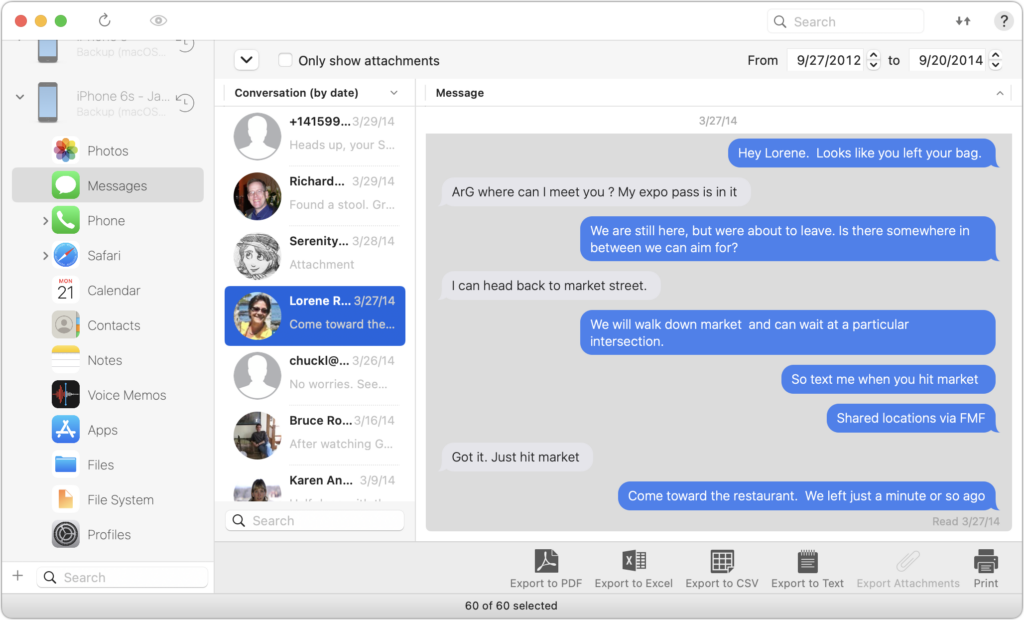
Occasionally, we hear from a client who needs to document a Messages conversation with timestamps, perhaps as part of a lawsuit. The only way to do that on an iPhone or iPad is to take a series of screenshots, but if you have a Mac, there are additional options. The easiest approach is to select the conversation, choose File > Print, and save it as a PDF. If you need a different format, try the macOS iMazing app, which can export all or selected messages from an iPhone backup in PDF, Excel, CSV, and text. It can also export attachments. The trial version lets you extract up to 25 items, and it’s only $39.99 if you have more significant iPhone exporting needs.
(Featured image by iStock.com/Morakot Kawinchan)
Recent Posts

Mar. 06, 2026
How to Find and Silence the Browser Tab That’s Playing Audio

Mar. 06, 2026
Losing Messages or Calls? Look in the Unknown Senders/Callers Filter

Mar. 06, 2026
iOS 26 Can AutoFill Credit Card Details

Mar. 06, 2026
Apple Refreshes Studio Display and Introduces Studio Display XDR

Mar. 06, 2026
Apple’s Focus Is Powerful but Unpredictable

Mar. 06, 2026
Why Cloud Storage Isn’t a Backup

Mar. 06, 2026
Apple Refreshes iPhone, iPad Air, and MacBook Lineups

Mar. 06, 2026
How Does the New MacBook Neo Compare to the MacBook Air?

Mar. 03, 2026
Tech Tips: Backups That Actually Save the Day

Feb. 06, 2026
Customize Folder Colors and Icons in macOS 26 Tahoe
View All Posts