

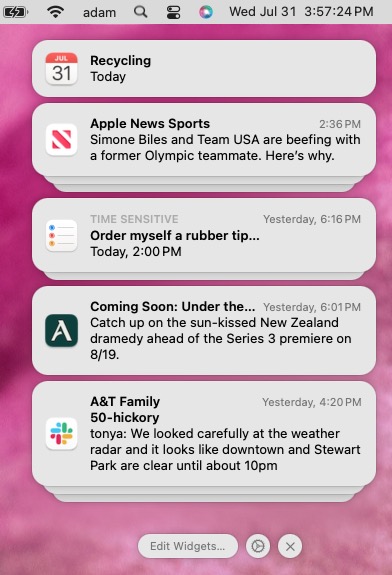
iOS, iPadOS, and macOS all let you specify whether any given app should show no notifications, temporary banners, or persistent alerts: look in Settings > Notifications and System Settings > Notifications. Temporary banners appear briefly and then automatically disappear, which is appropriate for notifications requiring no acknowledgment. But what if you see a temporary banner only as it’s disappearing and can’t read it in time? You can find a historical list of notifications in Notification Center. To open it from the Lock Screen on an iPhone or iPad, swipe up from the middle of the screen. From any other screen, swipe down from the center of the top of the screen. On the Mac, click the date and time in the upper right corner. If your Mac has a trackpad, you can also swipe with two fingers from the right edge.
(Featured image based on an original by iStock.com/Shutthiphong Chandaeng)
Social Media: If a temporary banner disappears from your iPhone, iPad, or Mac before you have a chance to read it, you can find it in Notification Center.
Recent Posts

Mar. 06, 2026
How to Find and Silence the Browser Tab That’s Playing Audio

Mar. 06, 2026
Losing Messages or Calls? Look in the Unknown Senders/Callers Filter

Mar. 06, 2026
iOS 26 Can AutoFill Credit Card Details

Mar. 06, 2026
Apple Refreshes Studio Display and Introduces Studio Display XDR

Mar. 06, 2026
Apple’s Focus Is Powerful but Unpredictable

Mar. 06, 2026
Why Cloud Storage Isn’t a Backup

Mar. 06, 2026
Apple Refreshes iPhone, iPad Air, and MacBook Lineups

Mar. 06, 2026
How Does the New MacBook Neo Compare to the MacBook Air?

Mar. 03, 2026
Tech Tips: Backups That Actually Save the Day

Feb. 06, 2026
Customize Folder Colors and Icons in macOS 26 Tahoe
View All Posts