

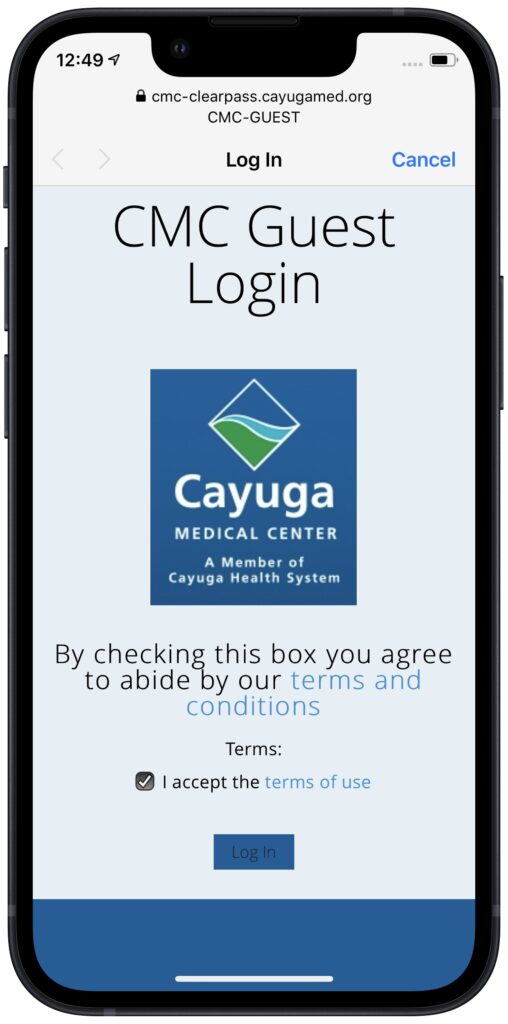
When you connect to a public Wi-Fi network at an airport, hotel, coffee shop, or school, you may need to interact with a captive portal login page to be granted access to the network. It might require you to enter login credentials, ask for your name, or make you agree to terms of service. But what if that login page doesn’t appear, or something kicks you off the network and you can’t reconnect? In Safari, navigate to captive.apple.com, which should force the captive portal to display its login page again. If that doesn’t work, remove any custom DNS servers and restart. On the Mac, find custom DNS servers in System Settings > Network > Wi-Fi > Details > DNS. On an iPhone or iPad, go to Settings > Wi-Fi > Network Name > Configure DNS and choose Automatic.
(Featured image based on an original by iStock.com/CreativaImages)
Social Media: When you connect to a public Wi-Fi network, you often must authenticate or agree to terms on a captive portal login page. Here’s the solution if that page doesn’t appear.
Recent Posts

Mar. 06, 2026
How to Find and Silence the Browser Tab That’s Playing Audio

Mar. 06, 2026
Losing Messages or Calls? Look in the Unknown Senders/Callers Filter

Mar. 06, 2026
iOS 26 Can AutoFill Credit Card Details

Mar. 06, 2026
Apple Refreshes Studio Display and Introduces Studio Display XDR

Mar. 06, 2026
Apple’s Focus Is Powerful but Unpredictable

Mar. 06, 2026
Why Cloud Storage Isn’t a Backup

Mar. 06, 2026
Apple Refreshes iPhone, iPad Air, and MacBook Lineups

Mar. 06, 2026
How Does the New MacBook Neo Compare to the MacBook Air?

Mar. 03, 2026
Tech Tips: Backups That Actually Save the Day

Feb. 06, 2026
Customize Folder Colors and Icons in macOS 26 Tahoe
View All Posts