

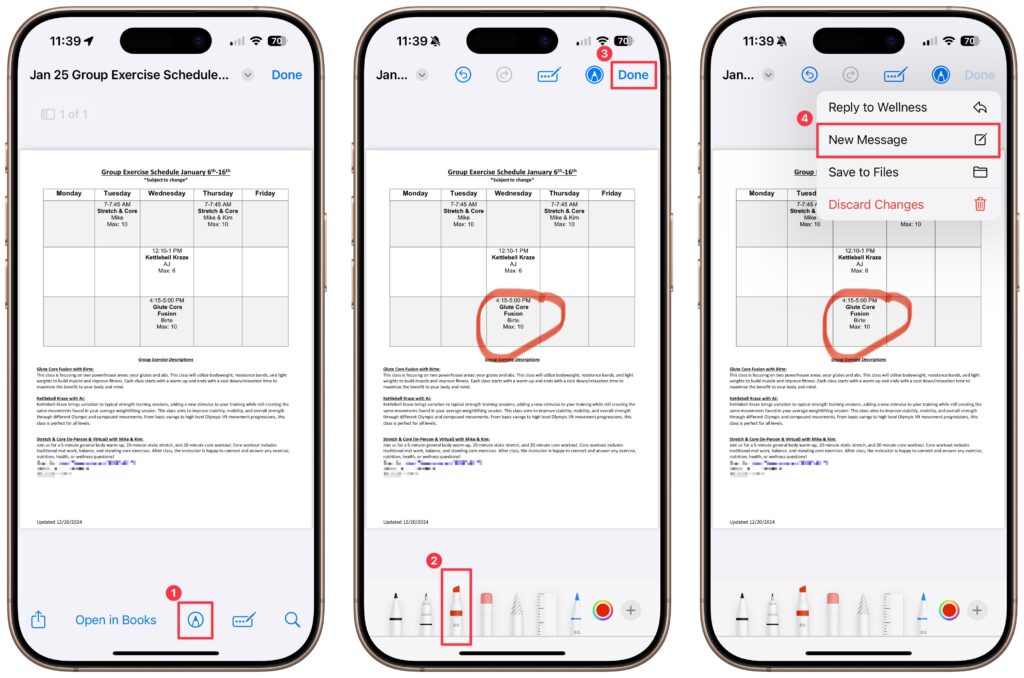
You can now work directly with PDFs received in the Mail app using a little-known feature in iOS 18 and iPadOS 18. Tap a PDF attachment in a message and use the Markup and Form Fill buttons at the bottom to access the PDF markup and filling tools. After modifying your PDF, tapping the Done button gives you options for what to do with the PDF: include it in a reply, create a new message with it, save it to Files, or discard the changes.
(Featured image by iStock.com/chanakon laorob)
Social Media: Have you ever needed to sign or annotate a PDF you received in the Mail app on your iPhone? With iOS 18 and iPadOS 18, you can manage PDFs directly in Mail. Once you’re finished, you can attach the modified PDF to a reply or a new message.
Recent Posts

Mar. 06, 2026
How to Find and Silence the Browser Tab That’s Playing Audio

Mar. 06, 2026
Losing Messages or Calls? Look in the Unknown Senders/Callers Filter

Mar. 06, 2026
iOS 26 Can AutoFill Credit Card Details

Mar. 06, 2026
Apple Refreshes Studio Display and Introduces Studio Display XDR

Mar. 06, 2026
Apple’s Focus Is Powerful but Unpredictable

Mar. 06, 2026
Why Cloud Storage Isn’t a Backup

Mar. 06, 2026
Apple Refreshes iPhone, iPad Air, and MacBook Lineups

Mar. 06, 2026
How Does the New MacBook Neo Compare to the MacBook Air?

Mar. 03, 2026
Tech Tips: Backups That Actually Save the Day

Feb. 06, 2026
Customize Folder Colors and Icons in macOS 26 Tahoe
View All Posts