

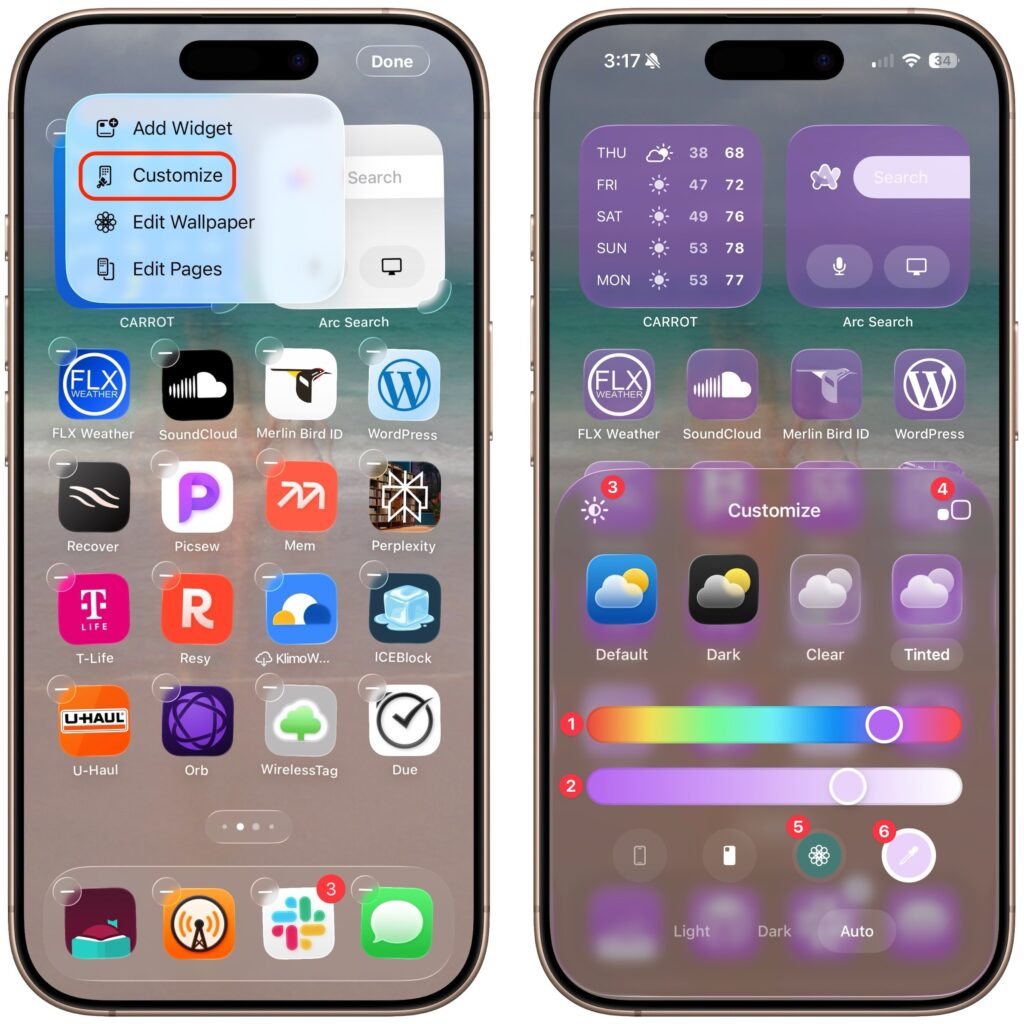
When describing its new Liquid Glass design language, Apple spoke only generally about how users could change the look of icons and widgets on their iPhone and iPad home screens to be dark, clear, or tinted, without specifying how to do that. The trick is to touch and hold an empty spot on the Home screen to enter jiggle mode, tap Edit in the upper-left corner, and select Customize to bring up a set of controls: choose from Default, Dark, Clear, and Tinted. For Tinted, set the color ➊ and opacity ➋ using the sliders, and use the buttons at the top of the Customize panel to change the brightness ➌, expand icons and remove names ➍, and use either the suggested image color ➎ or pick a color with the eye dropper ➏. The effectiveness of a Liquid Glass-enabled Home Screen will depend on how much you rely on color to identify icons at a glance.
(Featured image by Apple)
Social Media: Apple’s new Liquid Glass design lets you make iPhone and iPad icons and widgets dark, clear, or tinted. Discover how to access these customization options and see if they enhance your Home Screen.
Recent Posts

Mar. 06, 2026
How to Find and Silence the Browser Tab That’s Playing Audio

Mar. 06, 2026
Losing Messages or Calls? Look in the Unknown Senders/Callers Filter

Mar. 06, 2026
iOS 26 Can AutoFill Credit Card Details

Mar. 06, 2026
Apple Refreshes Studio Display and Introduces Studio Display XDR

Mar. 06, 2026
Apple’s Focus Is Powerful but Unpredictable

Mar. 06, 2026
Why Cloud Storage Isn’t a Backup

Mar. 06, 2026
Apple Refreshes iPhone, iPad Air, and MacBook Lineups

Mar. 06, 2026
How Does the New MacBook Neo Compare to the MacBook Air?

Mar. 03, 2026
Tech Tips: Backups That Actually Save the Day

Feb. 06, 2026
Customize Folder Colors and Icons in macOS 26 Tahoe
View All Posts