

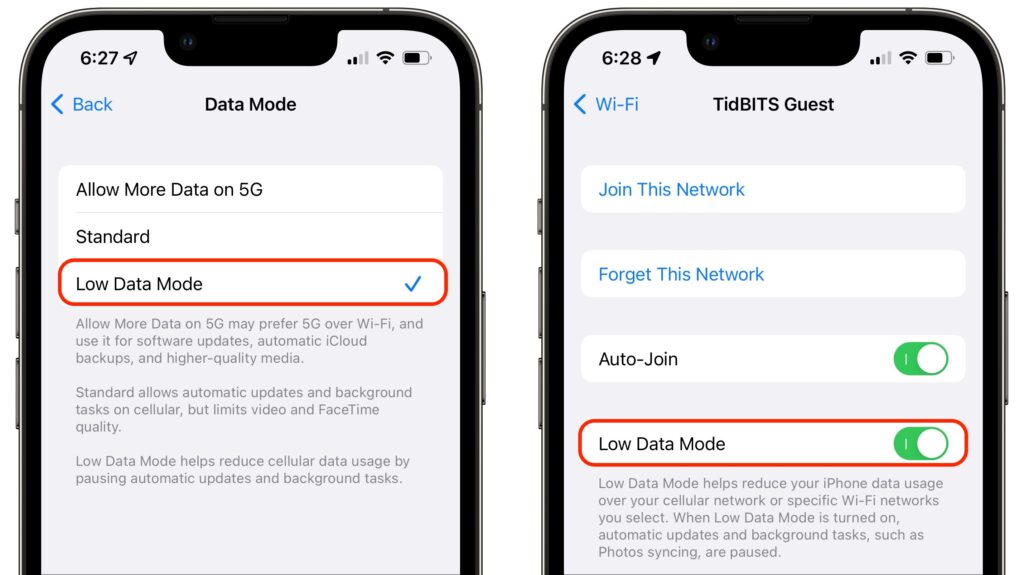
Do you need to be careful about how much data you use with your iPhone or iPad, either via cellular or Wi-Fi? That could be true for those with Internet data caps, people using an international plan while traveling, and anyone in an area with slow data speeds. To reduce your data usage, turn on Low Data Mode, which you can do separately for cellular and Wi-Fi. For cellular, look in Settings > Cellular > Cellular Data Options, where you can either enable Low Data Mode for LTE/4G or take one more step into Data Mode for 5G. If you’re using two plans with a dual SIM iPhone, you can set each one separately. For Wi-Fi, go to Settings > Wi-Fi and tap the i button next to the desired Wi-Fi network and then tap Low Data Mode. Apple lists what you can expect to change in Low Data Mode. If you need a similar capability for the Mac, check out TripMode.
(Featured image by iStock.com/Created_by_light)
Recent Posts

Mar. 06, 2026
How to Find and Silence the Browser Tab That’s Playing Audio

Mar. 06, 2026
Losing Messages or Calls? Look in the Unknown Senders/Callers Filter

Mar. 06, 2026
iOS 26 Can AutoFill Credit Card Details

Mar. 06, 2026
Apple Refreshes Studio Display and Introduces Studio Display XDR

Mar. 06, 2026
Apple’s Focus Is Powerful but Unpredictable

Mar. 06, 2026
Why Cloud Storage Isn’t a Backup

Mar. 06, 2026
Apple Refreshes iPhone, iPad Air, and MacBook Lineups

Mar. 06, 2026
How Does the New MacBook Neo Compare to the MacBook Air?

Mar. 03, 2026
Tech Tips: Backups That Actually Save the Day

Feb. 06, 2026
Customize Folder Colors and Icons in macOS 26 Tahoe
View All Posts