

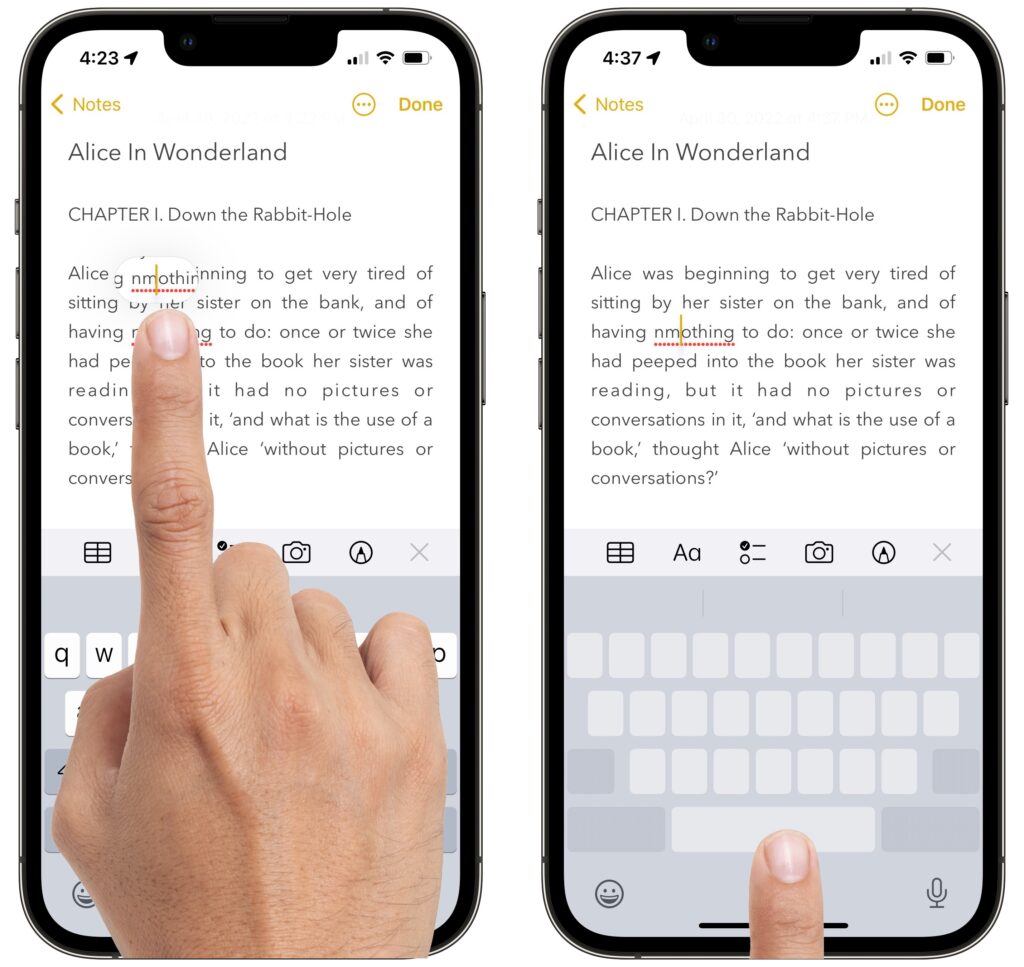
Prior to iOS 13, when you were editing text on an iPhone or iPad, Apple provided a magnifying glass that showed the position of the insertion point. It worked, but was clumsier than just moving the insertion point directly, which is what Apple enabled in iOS 13 and iOS 14. The only problem? Your finger usually obscures the text you want to edit. In iOS 15, Apple brought back the text magnification bubble to show you where the insertion point is in the text under your finger. If you’ve missed that feature, touch and hold on some text and drag the insertion point. Even easier is trackpad mode on the iPhone, which lets you touch and hold the Space bar to turn the entire keyboard area into a virtual trackpad that lets you move the insertion point above.
(Featured image by iStock.com/Ralf Geithe)
Recent Posts

Mar. 06, 2026
How to Find and Silence the Browser Tab That’s Playing Audio

Mar. 06, 2026
Losing Messages or Calls? Look in the Unknown Senders/Callers Filter

Mar. 06, 2026
iOS 26 Can AutoFill Credit Card Details

Mar. 06, 2026
Apple Refreshes Studio Display and Introduces Studio Display XDR

Mar. 06, 2026
Apple’s Focus Is Powerful but Unpredictable

Mar. 06, 2026
Why Cloud Storage Isn’t a Backup

Mar. 06, 2026
Apple Refreshes iPhone, iPad Air, and MacBook Lineups

Mar. 06, 2026
How Does the New MacBook Neo Compare to the MacBook Air?

Mar. 03, 2026
Tech Tips: Backups That Actually Save the Day

Feb. 06, 2026
Customize Folder Colors and Icons in macOS 26 Tahoe
View All Posts