

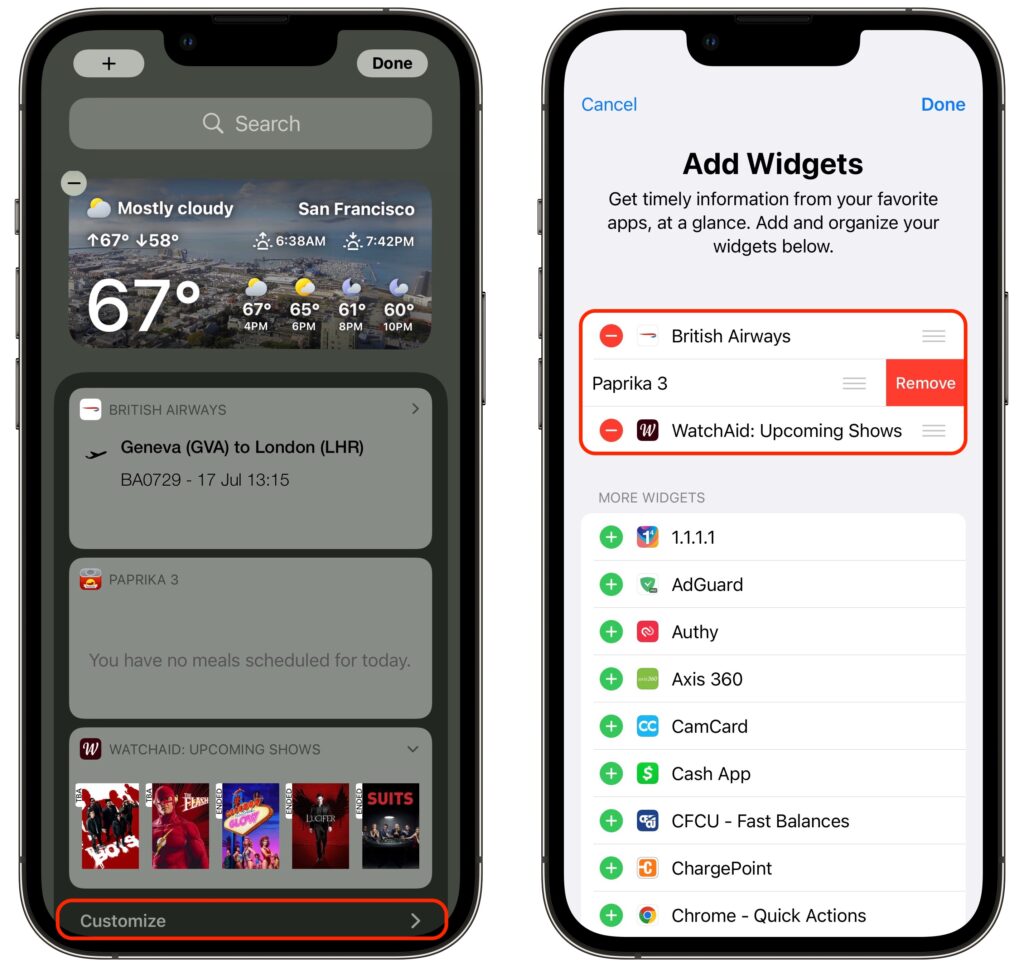
In iOS 14, Apple overhauled widgets, allowing you to add them to your Home screen in addition to the Today View accessible by swiping right on the Home screen. App developers responded with a slew of new widgets, but old-style widgets that are limited to Today View remain available. If you no longer want these older widgets cluttering the bottom of your Today View, here’s how to remove them. Swipe right on the Home screen to enter Today View. At the bottom of Today View, tap the Edit button, and at the bottom of the collection of old-style widgets (new-style widgets wiggle), tap Customize. In the Add Widgets screen, tap the red ⊖ button next to each widget you want to delete and confirm by tapping Remove.
(Featured image by Adam Engst)
Recent Posts

Mar. 06, 2026
How to Find and Silence the Browser Tab That’s Playing Audio

Mar. 06, 2026
Losing Messages or Calls? Look in the Unknown Senders/Callers Filter

Mar. 06, 2026
iOS 26 Can AutoFill Credit Card Details

Mar. 06, 2026
Apple Refreshes Studio Display and Introduces Studio Display XDR

Mar. 06, 2026
Apple’s Focus Is Powerful but Unpredictable

Mar. 06, 2026
Why Cloud Storage Isn’t a Backup

Mar. 06, 2026
Apple Refreshes iPhone, iPad Air, and MacBook Lineups

Mar. 06, 2026
How Does the New MacBook Neo Compare to the MacBook Air?

Mar. 03, 2026
Tech Tips: Backups That Actually Save the Day

Feb. 06, 2026
Customize Folder Colors and Icons in macOS 26 Tahoe
View All Posts